SETUP GUIDE
Set up the right model, step by step.
Start with the hardware basics, then use model-specific manuals or videos for advanced settings. Do not mix instructions between different models.
BEFORE YOU BEGIN
Prepare these basics first.
Exact accessories can vary by model, so use the package list on the product page as the source of truth.
STEP BY STEP
Complete the basic setup in order.
Keep advanced model-specific actions separate from the basic hardware setup.
01
▣
Connect to your TV or display
Connect the TV box using the appropriate HDMI connection, then switch the TV or display to the matching input source.
Check: the correct HDMI input is selected.02
⏻
Connect power
Use the supplied power adapter and confirm the device receives stable power before moving on.
Check: power indicator or startup screen appears when applicable.03
•••
Prepare the remote
Install the required batteries or accessories. Pairing methods can vary, so follow the exact model guide if pairing is required.
Check: basic navigation responds before advanced setup.04
A
Complete on-screen setup
Follow the on-screen prompts for language, display and other basic device settings supported by the model.
Check: the home or main system screen loads normally.05
⌁
Connect to your network
Choose a supported Wi-Fi connection or Ethernet when available on the exact model.
Check: network connection is shown as active before continuing.06
▣
Check picture and sound
Confirm the display output is stable and the TV/display audio path is working before changing advanced settings.
Check: picture and sound work with the current basic setup.07
≡
Use the exact model guide
For advanced configuration, resets, firmware changes or recovery, use only the verified manual or video for the exact model.
Check: brand and model match before following advanced instructions.AFTER BASIC SETUP
Confirm the essentials before changing advanced settings.
If these basics work correctly, continue with the exact model guide for any additional configuration.
SETUP QUESTIONS
Common checks before you continue.
These answers stay at the hardware-basics level. Advanced reset, firmware or recovery steps should come from the exact model resource.
Which HDMI input should I use?
Use the TV/display input that matches the HDMI port where the TV box is connected. If there is no picture, confirm the cable and selected input before changing device settings.
Can I use a different power adapter?
Use the supplied adapter for the exact model unless a verified replacement specification is provided. An unverified adapter can cause unstable power or device damage.
Do I need Wi-Fi if the model supports Ethernet?
You can use a supported connection available on the exact model. Check the product specifications first because wired network support can differ between models.
Where should I go if setup stops working?
Open Troubleshooting for safe basic checks. If the issue remains, contact Support with the order number, brand, exact model and a clear photo or description of the issue.
OFFICIAL MODEL RESOURCES
Use the supplied guide for the exact model.
These resources come from model-specific materials. Do not apply one model's advanced steps to another model.
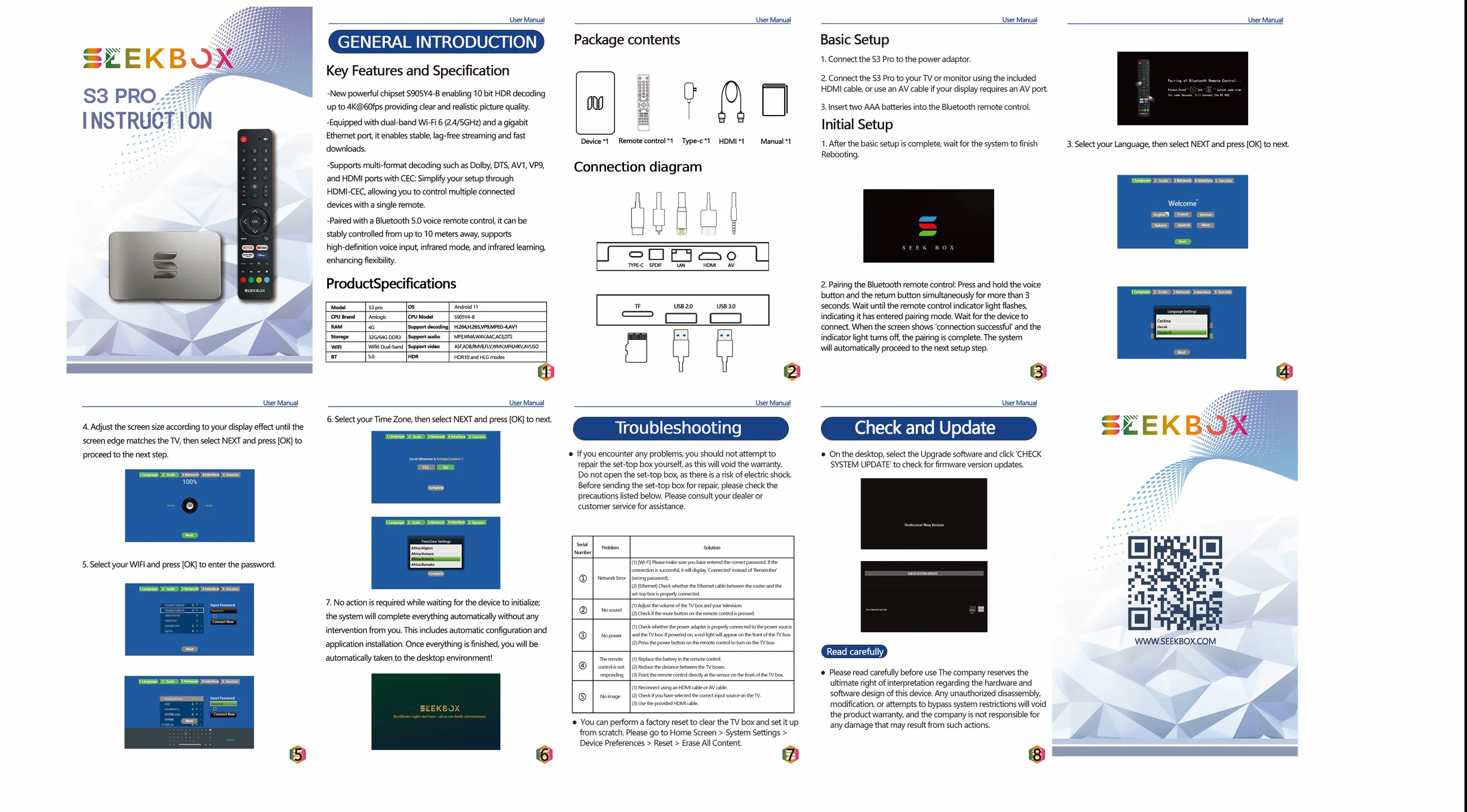
SeekBoxS3 Pro — User Manual & TroubleshootingSpecifications, package contents, basic setup, initial setup, troubleshooting and update reference.
View guide
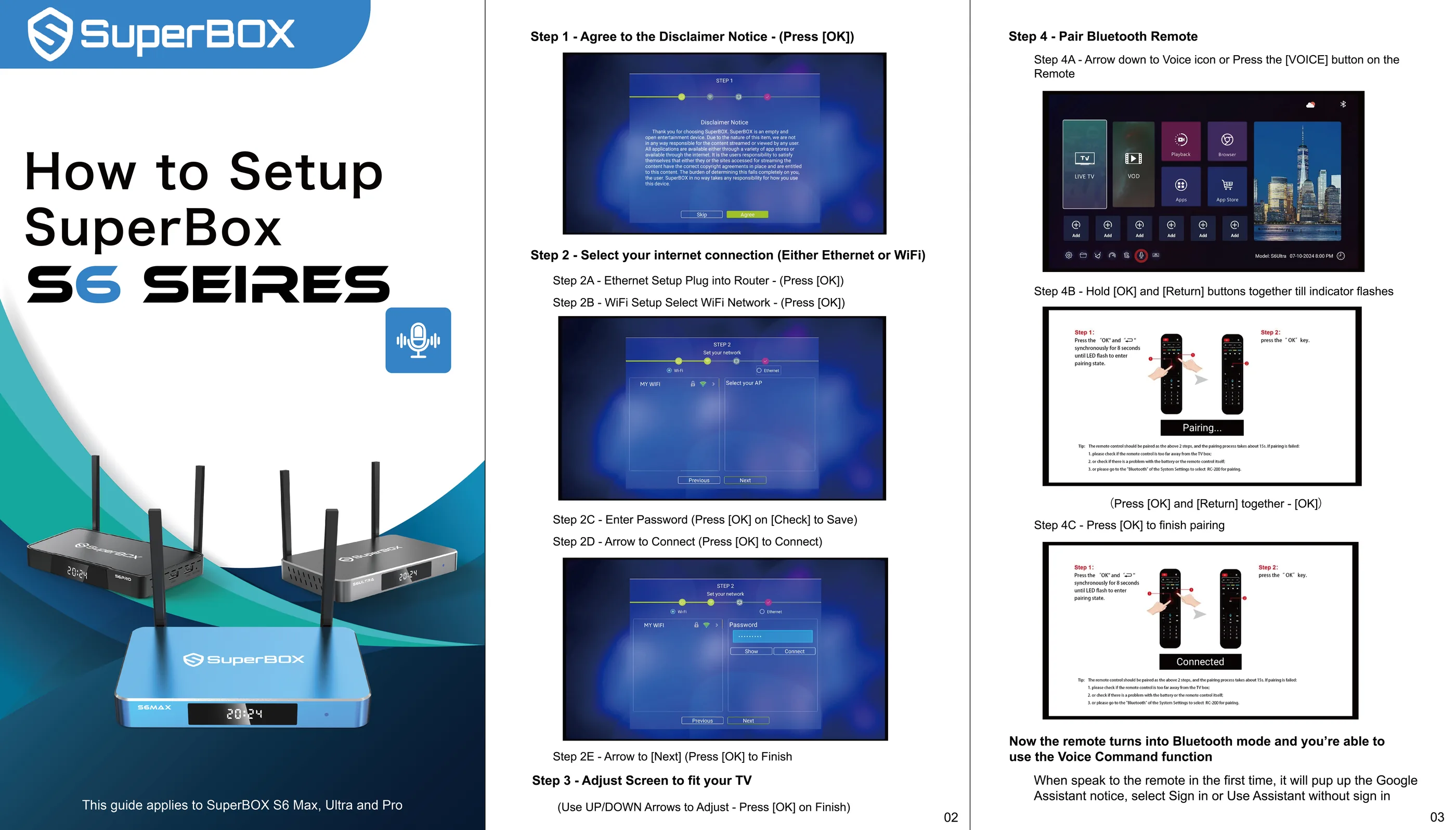
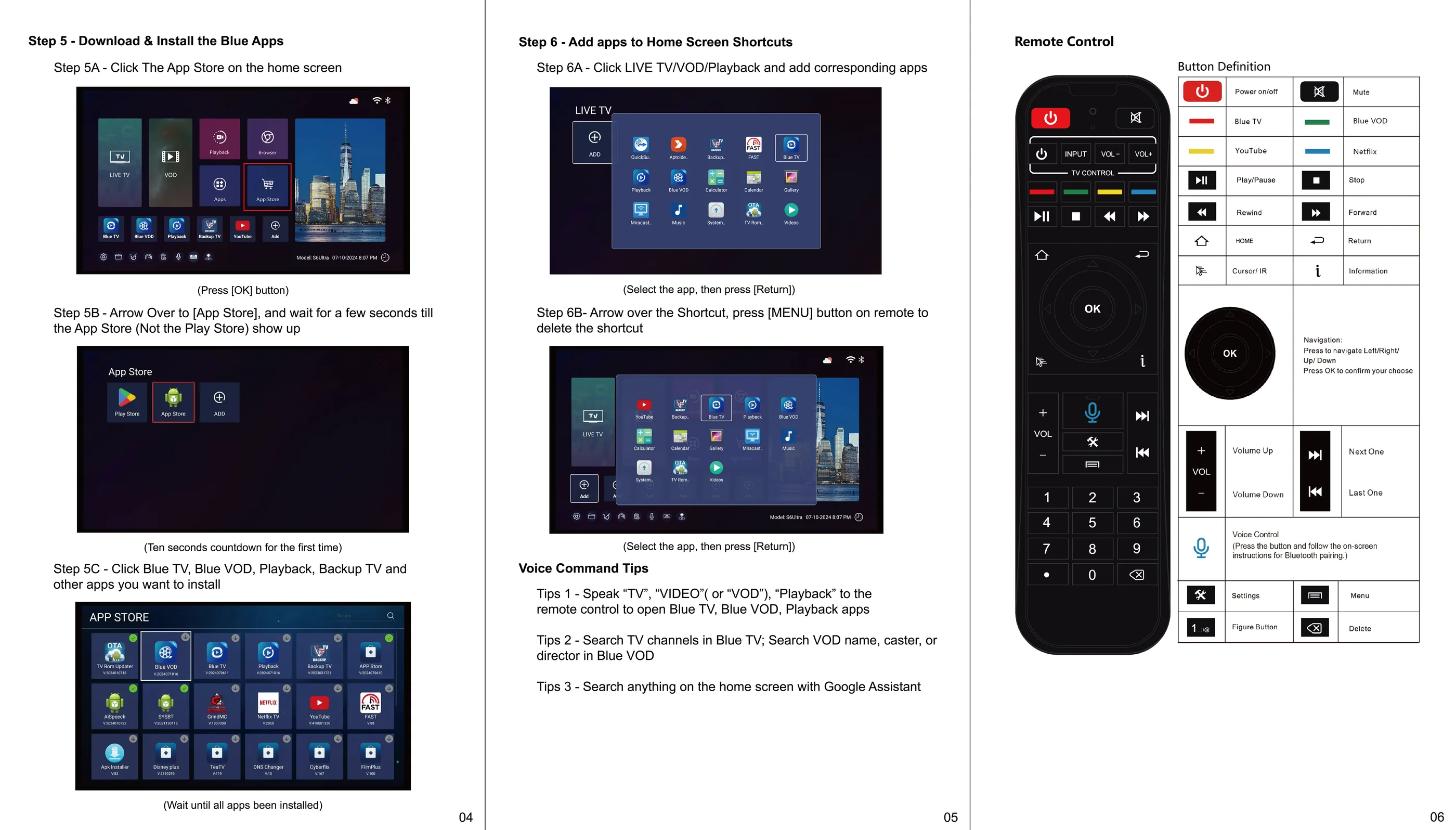
SuperBoxS6 Series — Setup GuideApplies to S6 Max, Ultra and Pro. Includes network setup, screen fit, Bluetooth remote pairing, app setup and remote reference.
View guide
NEED HELP?
Something not working after basic setup?
Use Troubleshooting for safe basic checks, then contact Support with the exact model and order details if needed.